Every brand   Updated August 25, 2026 · 3 min read

YouTube Search on Your TV From an iPhone: Photo Walkthrough

Quick answer Install A Decent Remote from the App Store, pair it with your TV, tap the keyboard button, type your search and tap Search on YouTube. The TV's own YouTube app opens straight on the results page. The photos below are one unedited run on a real LG: App Store to results in five minutes.

Step by step, in photos

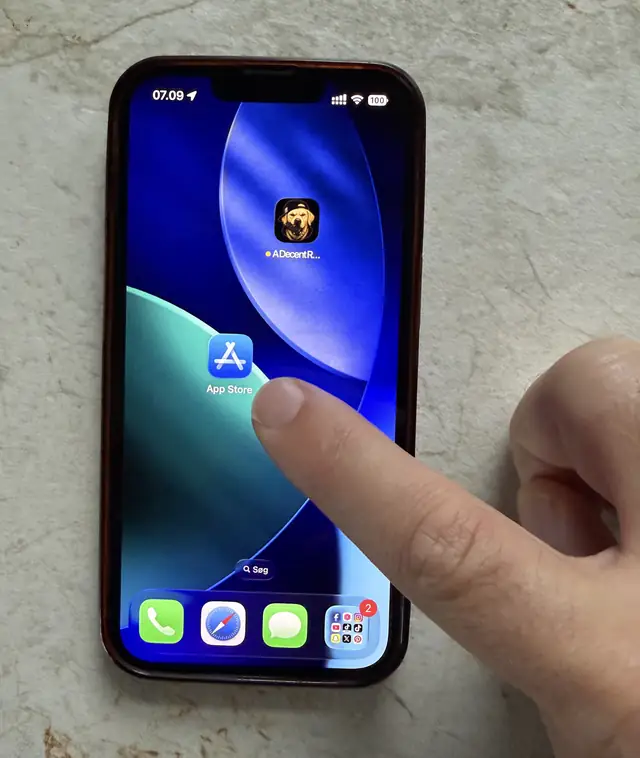
  1. Step 1 Open the App Store

    On the iPhone home screen, tap App Store. Nothing gets installed on the TV itself, so this is the only download involved.

    A finger tapping the App Store icon on an iPhone home screen
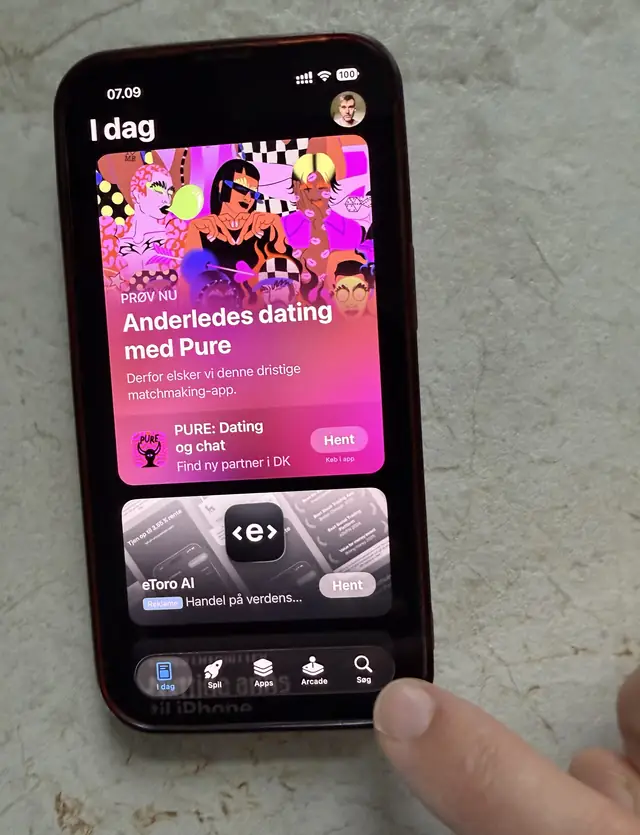
  2. Step 2 Go to the Search tab

    Tap Search in the tab bar at the bottom right. The Today tab that opens by default will not find the app.

    The App Store Today tab, with a finger reaching for the Search tab at the bottom right
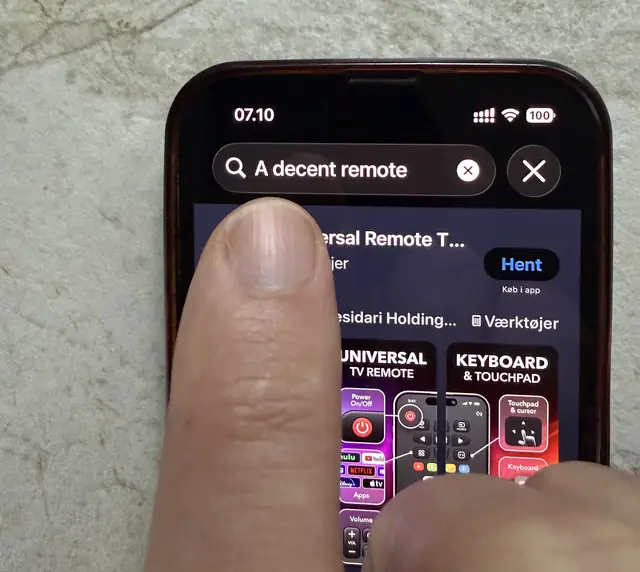
  3. Step 3 Search for "A decent remote"

    Type A decent remote into the search field. Capitalisation does not matter.

    The App Store search field with the words A decent remote typed into it
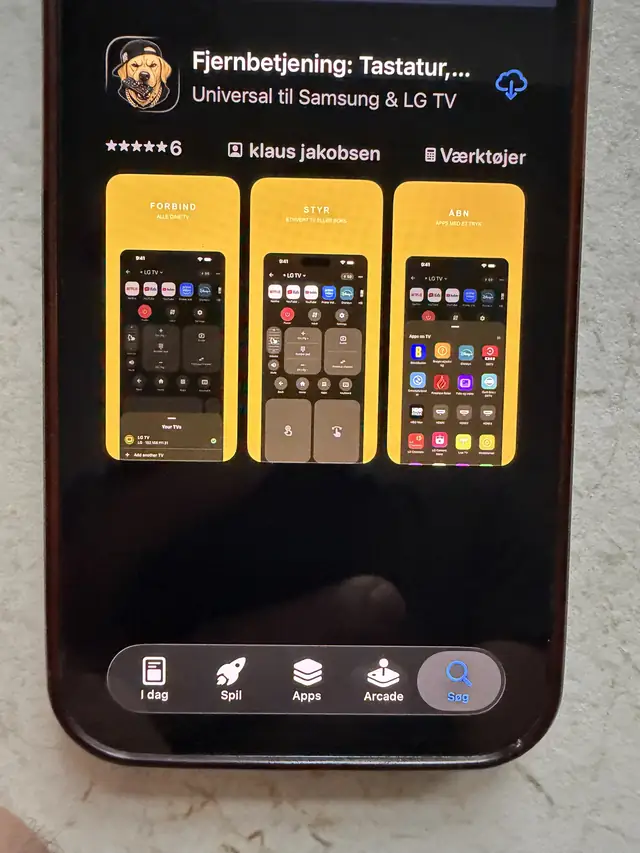
  4. Step 4 Download the app

    The listing with the dog icon is the right one; the App Store title reads TV Remote Keyboard & Touchpad App. Tap Get and confirm.

    The App Store listing for A Decent Remote, showing the dog icon and three yellow screenshots
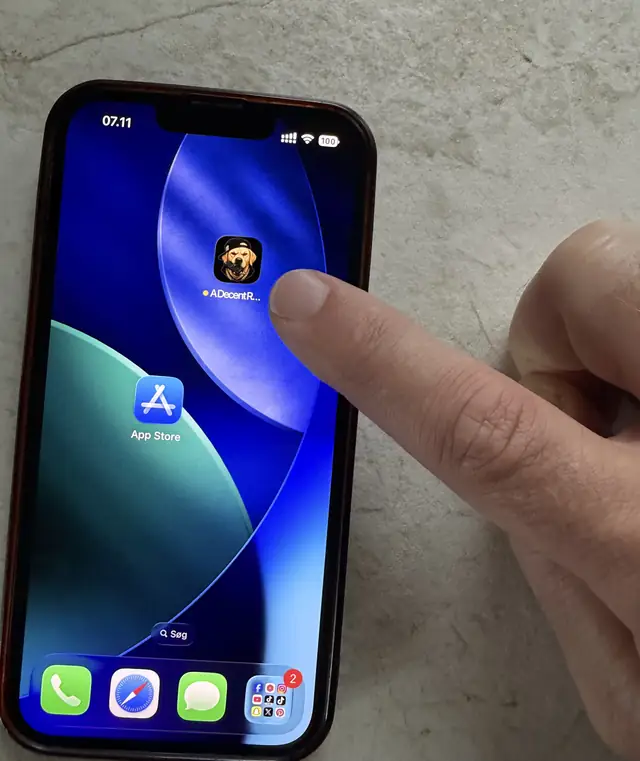
  5. Step 5 Open it from the home screen

    The app appears on your home screen. Open it, and pair it with your TV once. Pairing takes about a minute and is photographed step by step in the pairing walkthrough.

    A finger tapping the newly installed A Decent Remote icon on the iPhone home screen
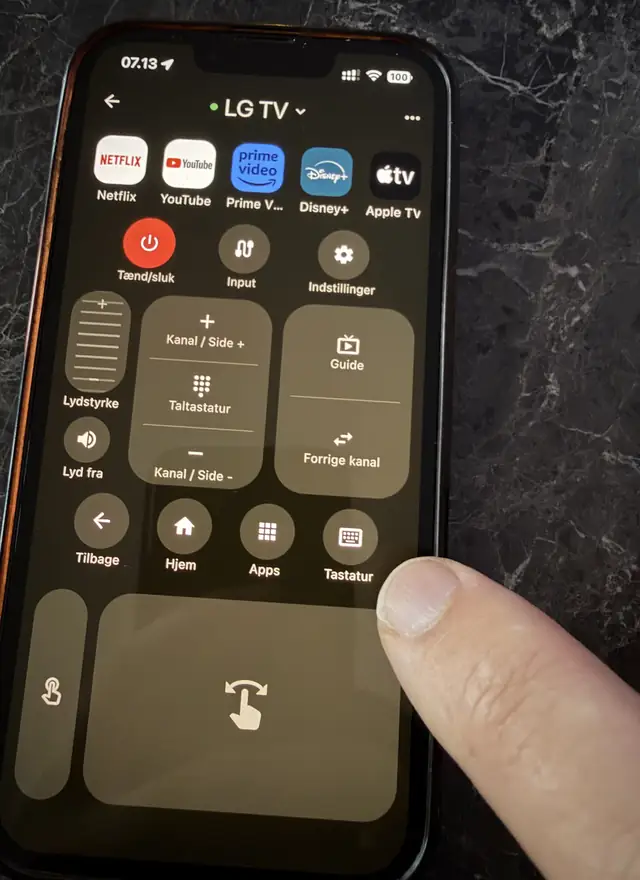
  6. Step 6 Tap the keyboard button

    On the remote screen, tap Keyboard in the bottom row of round buttons. The green dot next to the TV name means the connection is live.

    The remote screen in A Decent Remote connected to an LG TV, with a finger on the Keyboard button
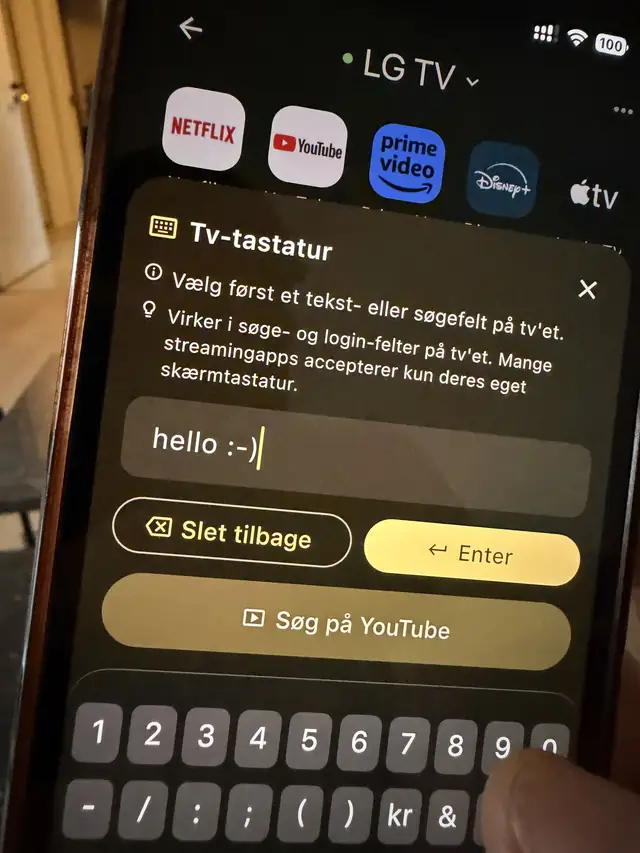
  7. Step 7 Type the search and send it to YouTube

    Type with the normal iPhone keyboard, then tap Search on YouTube. All the typing happens on the phone, so there is no letter grid and no arrow keys.

    The TV keyboard sheet in the app with a phrase typed in, above a Search on YouTube button
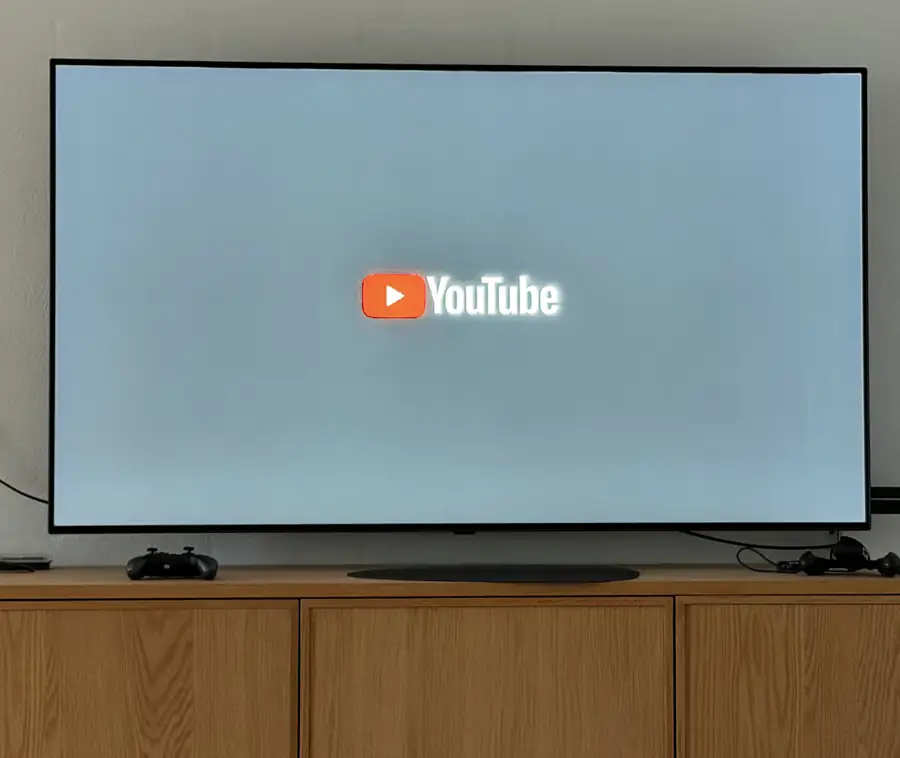
  8. Step 8 YouTube reopens on the TV

    The TV relaunches its YouTube app to receive the phrase, so an LG screen blinks white for a beat. That flash is the platform, not a crash.

    An LG TV showing the YouTube splash screen as the app relaunches
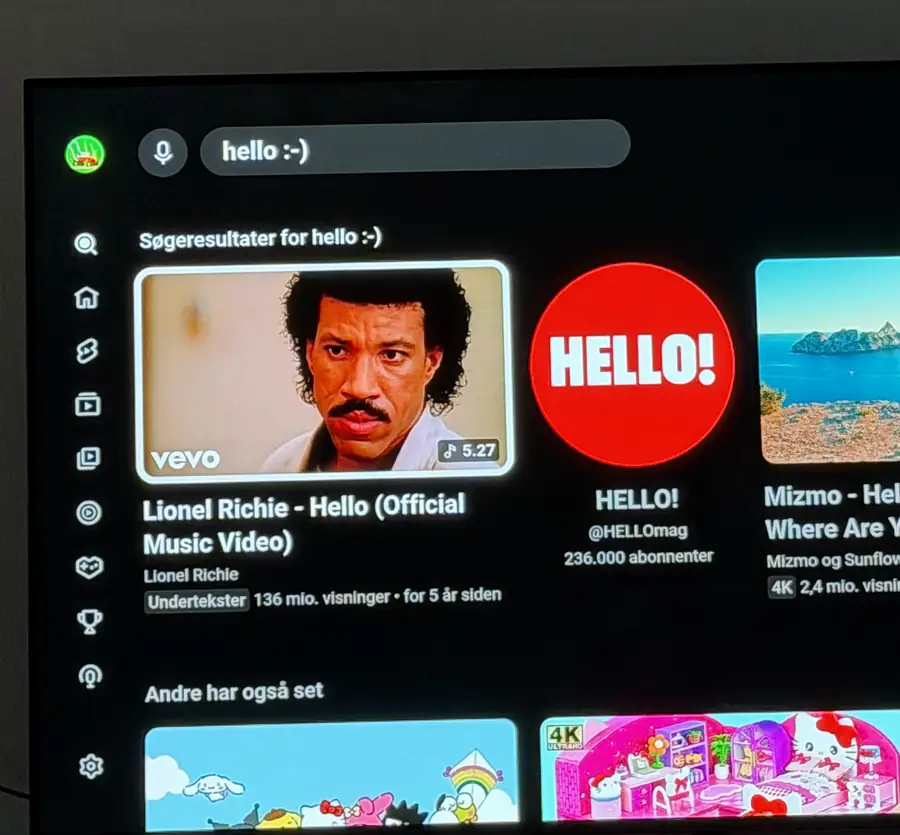
  9. Step 9 The results are on the big screen

    YouTube lands on the results page for exactly what you typed. Everyone on the couch sees the options, and you keep navigating from the phone.

    An LG TV showing a YouTube results page for the phrase that was typed on the iPhone

Nine photos, one hand holding the phone and the other holding the camera, which is the honest version of what this looks like. No mockups and no simulator: a real LG in a real living room, and the clock in the status bar is the real elapsed time.

Why send the search to the TV instead of just casting?

Casting is the better tool when you already know the video. You find it on the phone, tap the cast icon, and it plays.

Search is the case casting handles badly. Nobody knows which of the eight results they want until they see the thumbnails, and on a cast the thumbnails are on one person’s phone. Sending the phrase to the TV puts the results grid where everyone can see it, and the phone goes back to being just a keyboard.

The mechanical reason it works this way is worth knowing: TV platforms refuse outside text input inside streaming apps. YouTube on webOS or Fire TV accepts only its own on-screen letter grid. What every platform does allow is launching an app with parameters attached, which is how the TV’s own voice search works. A Decent Remote uses that same door, per platform. The longer version, including which platforms take the phrase and which only get YouTube opened, is in the YouTube search guide.

What happens between step 5 and step 6?

Pairing. The photos jump from opening the app to a remote that already says “LG TV” with a green dot, because that is a one-time setup you never repeat on that TV.

It is three taps and a PIN, and it has its own photographed walkthrough: pairing an iPhone with your TV, every step. If the app finds nothing at all when it scans, that is almost always the phone sitting on a guest network or a 5 GHz band the TV cannot see, and the TV not showing up guide walks through it.

Why is the app in Danish in the photos?

Because the phone is. The app follows whatever language the iPhone is set to, so the buttons you see as “Tastatur” and “Søg på YouTube” read “Keyboard” and “Search on YouTube” on an English phone, and the same in the other languages the app ships in. The layout and the button positions are identical, which is why the photos are still useful whatever your phone speaks.

Can I type anywhere else on the TV, or only into YouTube?

Both, with an important difference. Search fields outside streaming apps, meaning the TV’s own global search, login boxes and Wi-Fi passwords, take direct keyboard input on most platforms: you tap the field on the TV first, then type on the phone and the characters land.

Inside streaming apps, direct typing is blocked by the platform, and the YouTube search hand-off in this walkthrough is the workaround. Netflix has no equivalent door, which is covered honestly in typing into Netflix on a TV. Per-platform detail lives in the Roku typing guide and the Fire TV and Android TV typing guide.

A Decent Remote app icon Get A Decent Remote on the App Store One iPhone remote for Roku, Samsung, LG, Sony, Fire TV, Apple TV, Vizio, Hisense, Philips, Panasonic, Toshiba, Chromecast and Android/Google TV

Related guides

Pairing an iPhone With Your TV: Every Step, Photographed

From a cold start to a working remote in about three minutes: scan, tap your TV, type the PIN it puts on screen. Shot on a real LG, one unedited run.

How to Search YouTube on Your TV From Your iPhone

Skip the letter grid. Two ways to search YouTube on the big screen using your iPhone keyboard, including one that works across six TV platforms.

How to Type on Fire TV and Android TV From Your iPhone

Passwords and searches without the letter grid: how iPhone keyboard input works on Fire TV and Android/Google TV, what it covers, and where the limits are.

Frequently asked questions

How long does this actually take?

The clock in the photos runs from 07:09 to 07:14, so five minutes including the App Store download and a first-time pairing. A second search afterwards takes about ten seconds: open the app, tap Keyboard, type, send.

Does the search open on the TV or play on the phone?

On the TV. The phrase is handed to the TV's own YouTube app as a launch parameter, so the results grid fills the big screen. That is different from casting, where you browse privately on the phone and only the chosen video appears on the TV.

Does this only work on LG?

No. The search hand-off works on LG (webOS), Samsung (Tizen), Fire TV, Android TV and Google TV, Roku, and Philips. The photos happen to be an LG C-series because that is the TV in the room. On other platforms the app still launches YouTube, but without the phrase.

Why does the TV flash white before the results appear?

webOS cannot push a search phrase into an already running app, so it closes YouTube and relaunches it with the phrase attached. The blink is that relaunch. It is a known webOS behaviour, not something an app can suppress.

Do I need the TV remote for any of this?

Not for the search itself. You do need some way to switch the TV on first, which is either the physical remote, the power button on the set, or the app once it is paired, since it can wake most TVs over the network.

What does the app cost?

Free to download and free for the first 50 button presses, then $4.99 a month or $24.99 a year. No ads at any point, including in the free portion.