By Klaus Jakobsen, developer of A Decent Remote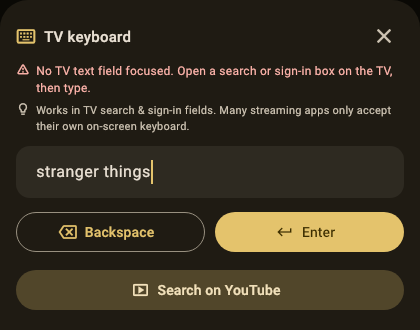
Every guide about typing on TVs eventually meets the same reader question: “fine, but does it work in Netflix?” The honest answer is the one nobody’s marketing wants to give, so here it is with the reasons attached.
Why doesn’t phone typing work inside Netflix?
Two design decisions stack against it. Netflix draws its own keyboard: that letter grid is rendered by the Netflix app itself, not by the TV’s operating system. Platforms only route external text into system fields: webOS, Tizen, Fire TV, Roku and tvOS all deliver remote-app keystrokes to standard text inputs, and a custom-drawn grid isn’t one. The combination means every remote app (ours, the brand-official ones, all of them) can navigate Netflix’s grid with arrow keys but can’t type into it. Any app claiming otherwise is describing d-pad navigation with extra steps.
What actually works for finding a title?
Go around Netflix, not through it. The TV’s global search does accept phone typing, and on Fire TV, Google TV and Roku it indexes the Netflix catalog:
- Open A Decent Remote and its keyboard (setup per platform, Roku).
- From the TV’s home screen, open search and type the title from the phone.
- Pick the result; the platform hands it to Netflix, which opens straight to the title.
One typed phrase, zero grid. YouTube gets an even better version of this treatment (results opening directly in the app), covered in the YouTube search guide.
What about the sign-in screen, the worst grid of all?
Look for “sign in from web” on Netflix’s TV login: the TV shows a short code, you visit netflix.com/tv8 on your phone, enter the code, and log in on the phone with autofill doing the password. Where a Netflix build doesn’t offer the code option, the phone’s d-pad keys still beat the physical remote through the grid, and that’s the honest ceiling: some walls are Netflix’s to keep.