Every brand   Updated August 25, 2026 · 3 min read

Pairing an iPhone With Your TV: Every Step, Photographed

Quick answer Open A Decent Remote with the TV switched on and both devices on the same Wi-Fi. The app scans your subnet, lists what it finds, and you tap your TV. LG, Samsung, Vizio and Android TV then put a PIN on the screen; type that into the app and the remote is live.

Step by step, in photos

  1. Step 1 Open the app

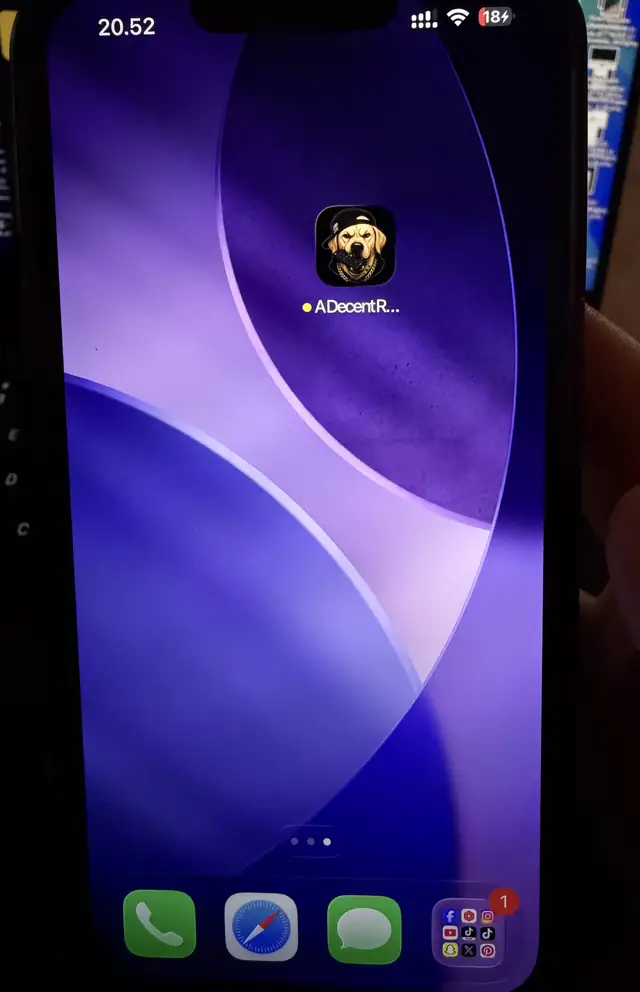
    Tap A Decent Remote on the home screen. On the very first launch iOS asks for Local Network access; that permission is what lets the phone talk to the TV at all, and denying it leaves the scan finding nothing.

    The A Decent Remote icon on an iPhone home screen at night
  2. Step 2 Switch the TV on

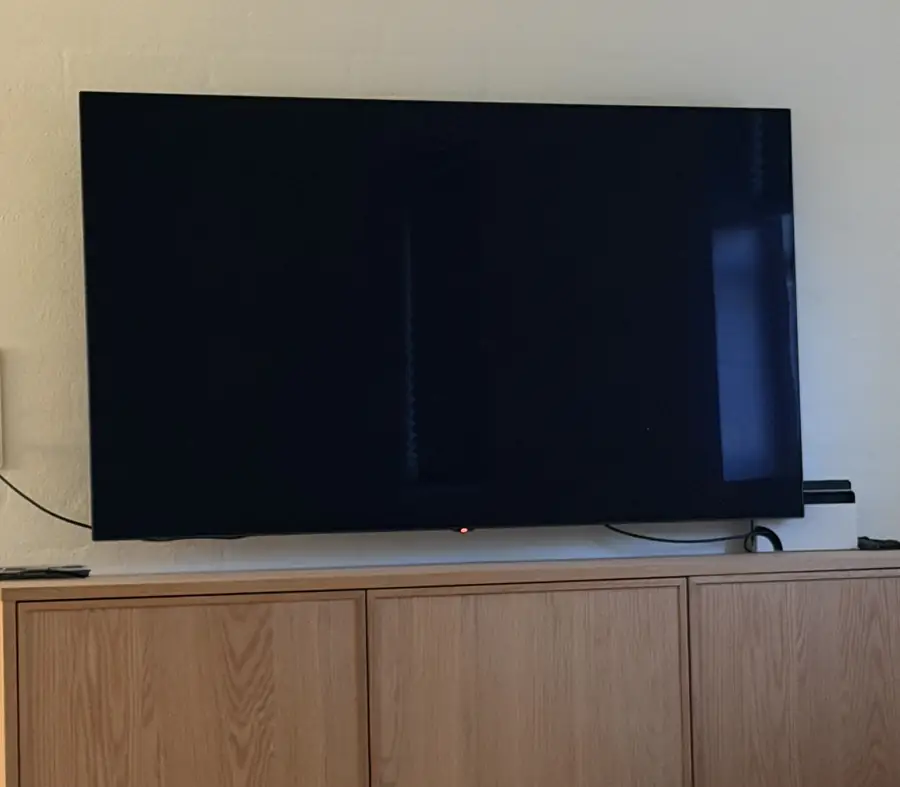
    A TV in standby answers nothing, so turn it on before scanning. Any input is fine; it does not have to be on the home screen.

    An LG TV on a wooden sideboard, screen dark, standby light showing red
  3. Step 3 Let it scan

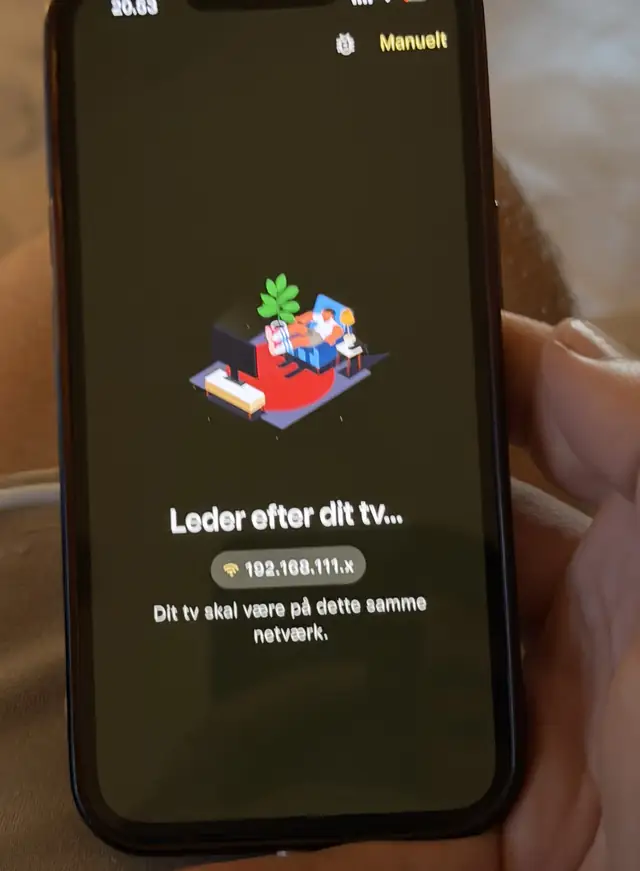
    The app sweeps your own subnet, shown here as 192.168.111.x. If that prefix does not match your TV's, the phone is on a different network and nothing will be found.

    The app scanning for TVs, showing the subnet it is searching and a note that the TV must be on the same network
  4. Step 4 Tap your TV in the list

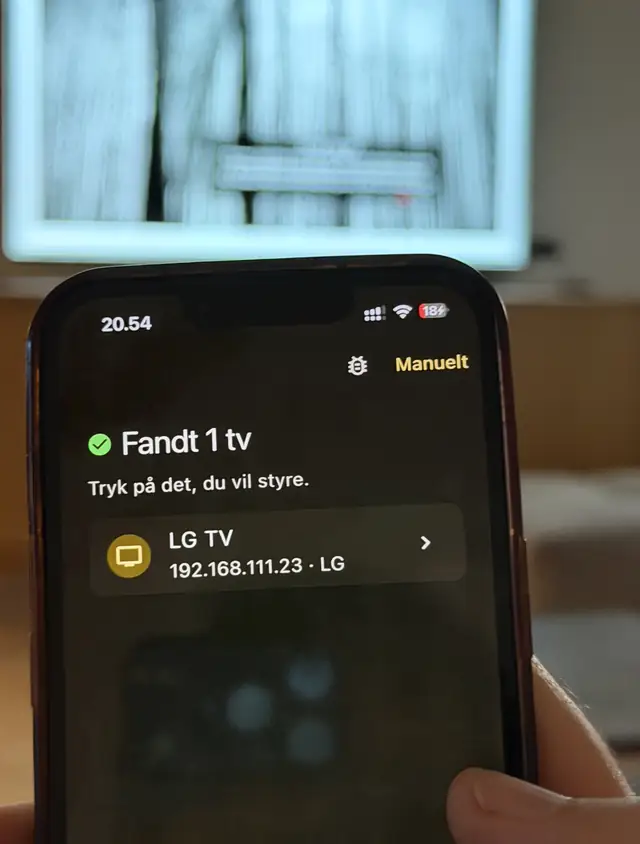
    Found sets are listed with their IP address and brand. Tap the one you want to control.

    The app showing one discovered TV, listed as LG TV with its IP address and brand
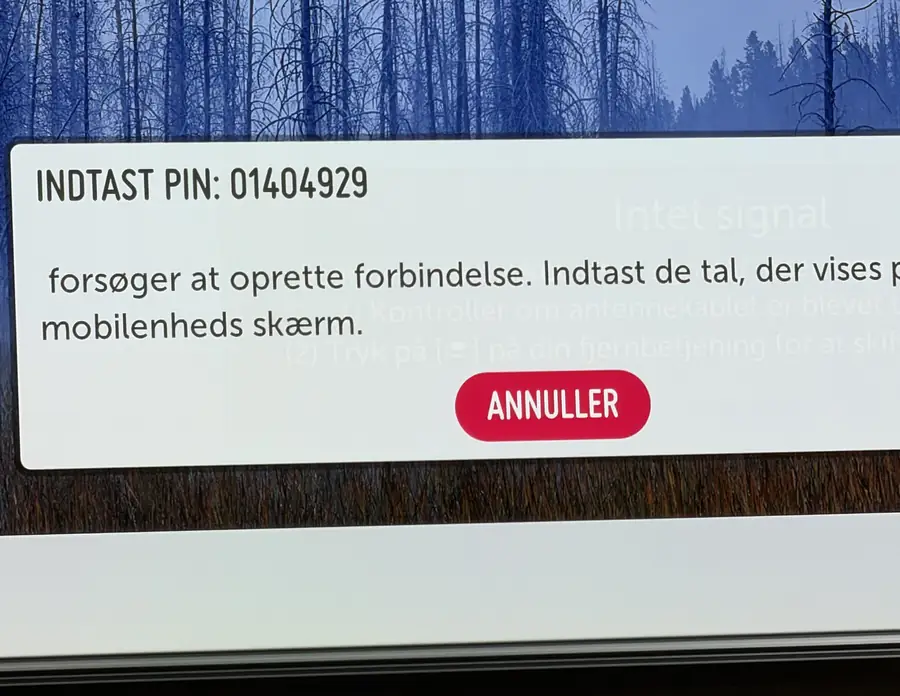
  5. Step 5 Read the PIN off the TV

    The TV puts an eight digit code on screen and asks you to type it into the phone. It is a fresh code every attempt, so it is worth nothing after this pairing.

    An LG TV showing a dialog with an eight digit pairing PIN and a cancel button
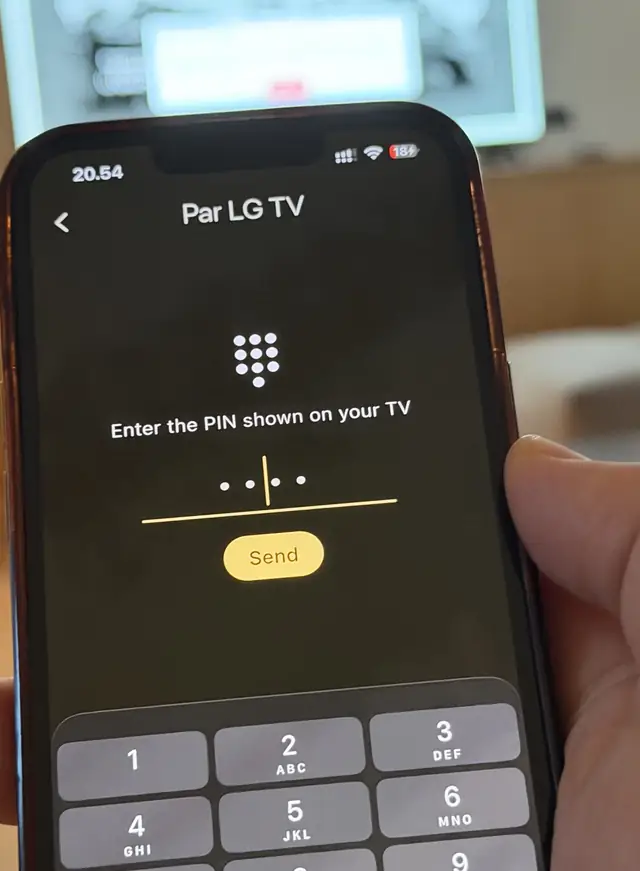
  6. Step 6 Type the PIN and send

    Enter the digits in the app and tap Send. Getting it wrong just reprompts; the TV issues a new code and you try again.

    The pairing screen in the app asking for the PIN shown on the TV, with a number pad below
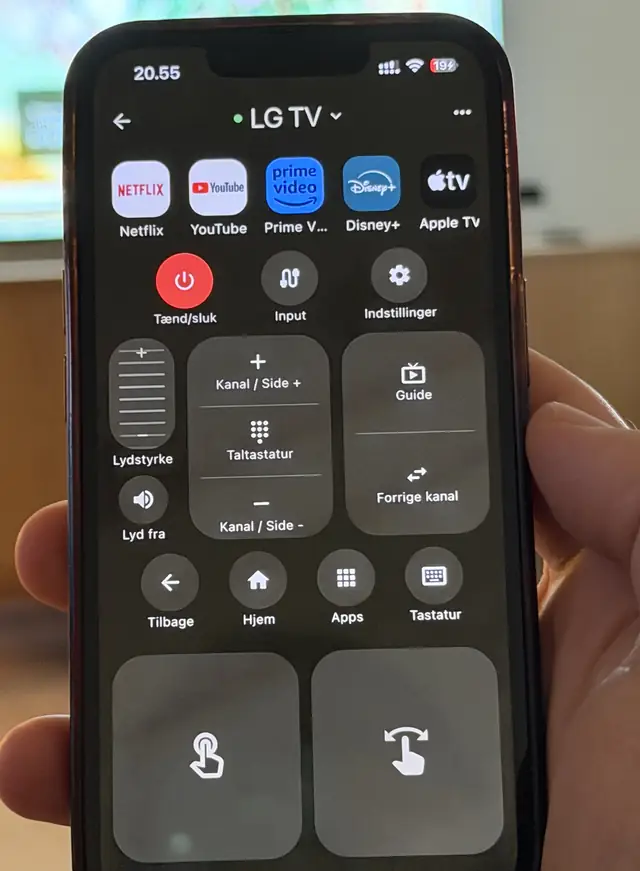
  7. Step 7 The remote is live

    The full remote appears with a green dot next to the TV name. The TV remembers the phone, so every launch after this one connects without a PIN.

    The full remote screen in the app, connected to an LG TV, showing app shortcuts, power, volume and a touchpad

Three minutes, seven photos, one LG. The status bar in the shots runs 20:52 to 20:55, and that is the whole thing: open, scan, tap, PIN, done. What follows is what each step is really doing, because knowing that makes the failures obvious when they happen.

Why is a scan needed at all?

Because there is no directory. Your phone has no idea what is on the network until it asks, so the app sends discovery probes across your own subnet and listens for anything that answers like a TV.

That is why the scanning screen shows the subnet it is working on. In the photo it reads 192.168.111.x, which is this house’s range. If your TV’s IP starts with different numbers, the two devices are on separate networks and no amount of waiting will change the result. That single line is the fastest diagnostic in the app.

Guest networks are the usual culprit, and so is a mesh router with client isolation switched on, since isolation exists precisely to stop devices talking to each other. The TV not showing up guide covers the rest of the causes.

Why does the TV want a PIN when I already picked it from a list?

Because the list only proves something answered. Anything on the network could claim to be a TV, and anything on the network could ask to control yours. The code on the screen is the TV checking that whoever is asking can see the screen, which is a decent proxy for being in the room.

Type it correctly and the TV hands back a long-lived token that the app stores in the iPhone keychain. Every launch after that authenticates with the token instead, which is why the PIN appears exactly once per TV.

Getting it wrong costs nothing. The TV cancels, generates a new code, and you type that one.

Does every brand work this way?

No, and it is worth knowing which one you own before you start.

LG, Vizio, Android TV and Google TV show a numeric code on screen, as in the photos. Samsung skips the digits and shows an Allow or Deny prompt instead, which has to be accepted with the TV remote or the buttons on the set. Roku, Fire TV, Philips, Panasonic up to 2018 and most Hisense sets ask for nothing and connect the moment you tap them.

Apple TV is its own case, with a code for older boxes and a different handshake on tvOS 15 and up, covered in the Apple TV guide. The brand-by-brand pairing detail is in using an iPhone as a TV remote.

Why is the app in Danish in the photos?

Because the phone is. The app takes its language from the iPhone, so “Fandt 1 tv” and “Leder efter dit tv” read “Found 1 TV” and “Looking for your TV” on an English phone. The screens are laid out identically in every language, so the photos still track.

What comes after pairing?

The remote in the last photo is the whole app: power, volume, inputs, a touchpad, app shortcuts, and a keyboard button that types into TV search fields from the iPhone keyboard. The most useful thing to try first is a YouTube search, which is photographed end to end in the YouTube walkthrough.

The layout is also editable, so the buttons you actually use can be dragged where your thumb lands: building your own remote layout.

A Decent Remote app icon Get A Decent Remote on the App Store One iPhone remote for Roku, Samsung, LG, Sony, Fire TV, Apple TV, Vizio, Hisense, Philips, Panasonic, Toshiba, Chromecast and Android/Google TV

Related guides

YouTube Search on Your TV From an iPhone: Photo Walkthrough

Every screen from the App Store to YouTube results on the TV, photographed on a real LG. About five minutes end to end, no TV remote involved.

Remote App Cannot Find Your TV? The Network Checklist That Fixes It

When a TV remote app shows an empty device list, the cause is almost always one of seven network conditions. Work down this checklist in order. Two minutes.

How to Use Your iPhone as a TV Remote (Any Brand)

Yes, on almost any smart TV made since about 2014. What it needs, what it cannot do, and the exact pairing step for every major brand.

Frequently asked questions

Why does the TV have to be switched on before the app can find it?

A TV in standby powers down most of its network stack, so it does not answer discovery probes. Some sets keep a listener alive for wake-on-LAN, which is how the app can turn a TV back on once it has been paired, but a set that has never been paired has to be awake first.

What is the PIN actually doing?

It proves the phone is in the room. Discovery only shows that something on the network claims to be a TV, so the TV issues a one-time code on the screen and will only accept a client that can repeat it back. In exchange the TV stores a long-lived token for that phone, which is why you only do this once.

Which brands ask for a PIN?

LG, Vizio and Android or Google TV show a code on screen. Samsung instead shows an Allow or Deny prompt with no digits. Roku, Fire TV, Philips before Titan OS, Panasonic up to 2018 and most Hisense sets need no pairing step at all and connect immediately.

The app found nothing. What is wrong?

Almost always the network. Check that the subnet shown on the scanning screen matches your TV's IP, since a phone on a guest network or a mesh system with client isolation cannot reach the TV. Also check that Local Network access was granted; iOS silently blocks discovery if it was refused.

Do I have to pair again after restarting the TV?

No. The token survives reboots on every brand here. It can be revoked by a factory reset, by clearing the TV's list of connected devices, or on some LG sets by a long period of not connecting, and then the PIN appears again.

Is the PIN in these photos a security problem?

No. LG generates a new code for every pairing attempt and the code is only valid during that attempt, so the digits in the photo were dead within seconds. The IP address is a private one on a home network and means nothing outside that house.