Every brand   Updated October 31, 2026 · 3 min read

Can the iPhone Control Center Remote Run a Samsung or LG TV?

Quick answer Sometimes. The remote in Control Center is made for Apple TV, but it also works with AirPlay-compatible smart TVs, including many recent Samsung and LG sets, once the TV is in the Home app. It is a basic remote. Older TVs and most other brands need the maker's free app or a remote app.

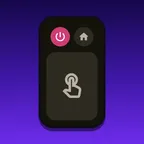
Swipe down on any iPhone and there is a small remote icon in Control Center. It looks as if it should run your TV, and for many people it simply says it cannot find anything. That is not a fault. The remote was built for Apple TV, and smart TVs are a side door that only some sets can use.

Which TVs does the built-in remote work with?

Apple lists two things: Apple TV, and smart TVs that support AirPlay. In practice that means:

Your TVDoes the built-in remote work?
Apple TVYes, this is what it is for
Recent Samsung with AirPlayYes, after setup
Recent LG with AirPlayYes, after setup
Other AirPlay TVsYes, after setup
Older smart TVs with no AirPlayNo
Roku, Fire TV or Google TV sticksNo
Any TV with no networkNo

To check your TV, look for AirPlay in its settings. If AirPlay is not there, the built-in remote will never see it, and nothing on the iPhone can change that.

How do I set it up on a Samsung or LG?

  1. Put the iPhone and the TV on the same Wi-Fi.
  2. Add the TV to the Home app and give it a room. Apple asks for this on smart TVs.
  3. Open Control Center and tap the remote icon.
  4. Choose your TV from the list at the top. If the TV shows a code, type it in.

If the icon is missing, add it to Control Center first. Once it works, it is one of the quickest ways to pause, because it is always a swipe away.

What can the built-in remote not do?

Treat it as a pause and arrows remote. It was designed around Apple TV, so on a smart TV it does not replace the remote in your drawer. The gaps people run into:

  • Inputs. It cannot jump to HDMI 2 for the games console.
  • Opening apps. There is no way to launch Netflix directly.
  • Volume. It often has no effect, as Apple’s own notes explain.
  • Turning the TV on. It needs the TV awake and connected first.

What should I use if my TV does not work with it?

Start with the free app from whoever makes your TV. You will only need something else if you have several brands, or want a simpler remote.

Your TVFree official app
SamsungSmartThings
LGLG ThinQ
RokuRoku
Fire TVFire TV
Android TV, Google TVGoogle TV

A Decent Remote covers these and more in one app, with no ads and no account. It connects over Wi-Fi with no AirPlay involved, so it works on Samsung and LG sets that are far too old for the built-in remote. We have seen LG sets from 2012 and Samsung sets from 2014 take commands from an iPhone. It is free for your first 50 button presses, and after that it is paid. It can also put Play/Pause and Mute on your lock screen.

Using your iPhone as a TV remote has the pairing step for each brand.
A Decent Remote app icon Get A Decent Remote on the App Store One iPhone remote for Roku, Samsung, LG, Sony, Fire TV, Apple TV, Vizio, Hisense, Philips, Panasonic, Toshiba, Chromecast and Android/Google TV Android? Join the test

Related guides

How to Use Your iPhone as a TV Remote (Any Brand)

Yes, on almost any smart TV made since about 2014. What it needs, what it cannot do, and the exact pairing step for every major brand.

Use Your iPhone as an Apple TV Remote (Lost Remote? No Problem)

The Siri Remote is gone again. Every way to control an Apple TV from an iPhone, including the pairing fix when the Apple TV refuses new connections.

Pairing an iPhone With Your TV: Every Step, Photographed

From a cold start to a working remote in about three minutes: scan, tap your TV, type the PIN it puts on screen. Shot on a real LG, one run.

Frequently asked questions

Can my iPhone control my TV without installing an app?

Only if the TV is an Apple TV or an AirPlay-compatible smart TV. For those, the remote is already in Control Center. Any other TV needs an app, because the built-in remote has nothing else to talk to.

Why does the remote not list my TV?

Check that the phone and TV are on the same Wi-Fi, that the TV supports AirPlay, and that it has been added to the Home app and given a room. Apple asks for that last step on smart TVs, and it is the one people miss.

Why is the remote missing from Control Center?

It may need adding. On recent iOS versions, touch and hold in Control Center, choose to add a control and pick the remote. On older versions, go to Settings, then Control Center, and add Apple TV Remote.

Does the built-in remote change the TV volume?

Often not. Apple says the volume buttons work when the TV is paired with a HomePod, soundbar or other AirPlay speakers. If yours do nothing, use the TV's remote or a remote app that shows volume on screen.

Is a separate remote app worth it if the built-in one works?

Only if you need what it lacks. If you just want to pause and move around, the built-in remote is free and already there. An app earns its place for inputs, typing and TVs that do not support AirPlay.

Test on Android

Join the testing group, then opt in on Google Play. Use the same Google account you use on your Android phone.

  1. Join the testing group

    On Google Groups, choose Join group and confirm. If you are already a member, continue to step 2.

    Join testing group
  2. Join the test on Google Play

    Choose Become a tester, then follow the link to install the app from Google Play.

    Open Google Play test

If Google Play says the app is unavailable, the test may still be awaiting approval. Try again later.

Optional: email me at public launch

Used only for one public-launch email, then deleted. Privacy

Have an iPhone too? Open the App Store