 By Klaus Jakobsen, developer of A Decent Remote
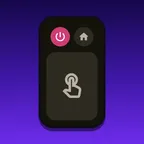

Yes, there is a free Fire Stick remote app, and Amazon makes it. It does most of what the plastic remote does, so start there. This page covers what it gives you, how to set it up and the few cases where a different app earns its place.
Is there a free Fire Stick remote app?
Yes. Amazon’s Amazon Fire TV app is free to download and has no time limit, no trial and no subscription. It runs on iPhone and Android and controls Fire TV devices.
What you get for nothing, from Amazon’s help pages and its App Store listing:
- A remote with a directional pad and a touchpad.
- Your phone’s keyboard for typing, instead of the letter grid on the TV.
- Search by text or voice, a watchlist and recommendations.
- Pairing a replacement physical remote to the stick.
- TV volume and power on supported setups, which depend on HDMI-CEC (see below).
The price is an Amazon account, because you sign in to the app before you can use the remote. Your phone and the stick also have to be on the same Wi-Fi.
If a Fire Stick is the only screen you point a remote at, use this app and stop reading. We would rather say that than sell you something you do not need. The same logic applies to most brands, and the list of free remote apps shows which official apps cost nothing.
How do I download the free Fire Stick remote on iPhone or Android?
Start with the name. The stores are full of apps called “Fire Stick Remote” and “Fire Remote”, and they come from other developers. Amazon’s is called Amazon Fire TV, and on the App Store its seller line reads AMZN Mobile LLC. On any lookalike, read the In-App Purchases line before you install.
- Install Amazon Fire TV on your phone.
- Join the same Wi-Fi network as the Fire Stick. If an iPhone asks for Local Network access, allow it.
- Open the app and sign in with your Amazon account.
- Tap the remote icon, then Set Up New Fire TV.
- Follow the prompts. The TV shows a code, and you type it into the app.
Nothing has to be pressed on the stick, which is why this is also the quickest rescue when the remote is dead (lost remote guide). Android has the same steps (Android guide).
What does the free Fire TV app not do?
Three honest limits:
- It controls Fire TV and nothing else. A Samsung in the lounge and an LG in the bedroom mean two more apps and two more layouts.
- It needs an Amazon sign-in, and it is built around Amazon’s content: recommendations, watchlists, content hubs.
- Volume and power are conditional. Amazon states that “not all TVs support the CEC protocol required”, and that the feature is not available on all Fire TV devices. If your app shows no option to set them up, that is why.
When is A Decent Remote a better Fire Stick remote app?
A Decent Remote is not free beyond the first 50 button presses, so the reasons have to be real. Here is the plain comparison.
| Amazon Fire TV app | A Decent Remote | |
|---|---|---|
| Cost | Free, no limit | Free for your first 50 presses, then paid |
| Account | Amazon sign-in | None |
| TVs it controls | Fire TV only | Fire TV, Samsung, LG, Sony, Vizio, Android TV, Apple TV and more |
| Setup on the stick | A code on the TV | Turn on ADB debugging once, accept one prompt |
| Touchpad swipes | Yes | No, arrows and OK only |
| Typing | Phone keyboard | Phone keyboard |
| Voice search | Yes | No |
| Newer sticks with no ADB setting | The route to try | Cannot connect |
| TV volume and power | Only on supported devices with HDMI-CEC | Not promised on a Fire Stick |
Pick A Decent Remote when the Fire Stick is one of several TVs, when you do not want an Amazon login on your phone, or when you want shortcuts to Netflix, YouTube, Prime Video and the other streaming apps from the same screen that runs your other sets. Pick Amazon’s when you want Alexa voice, swipe scrolling or the least setup.
A Decent Remote is on iPhone today, and the Android version is being built now. Leave your email and you get one message the day it is on Google Play.
How do I connect A Decent Remote to a Fire Stick?
Amazon’s app needs no settings change. A third-party remote has to use the debugging connection that Fire TV offers over Wi-Fi, so that setting must be on first:
- On the Fire TV, open Settings → My Fire TV → Developer Options and switch on ADB Debugging.
- No Developer Options entry? Open Settings → My Fire TV → About, select the device name seven times, then press Back.
- Put your iPhone on the same Wi-Fi, open the app and tap your Fire Stick.
- The TV shows Allow USB debugging?. Tick Always allow and select OK.
That prompt is the only moment you need a working remote. If yours is dead, pair Amazon’s free app first and use it as the arrow keys, or try your TV’s own remote, whose arrows often drive the stick through HDMI-CEC.
Some newer Fire TVs, including Vega OS sticks such as the Fire TV Stick 4K Select, have no ADB Debugging setting. A Decent Remote cannot connect to those, and Amazon’s free app is the answer. Typing then works from the phone keyboard (typing guide).