 By Klaus Jakobsen, developer of A Decent Remote
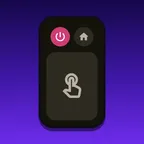

A dead Insignia remote hurts more than most, because many Insignia TVs have one button on the set and nothing else. The fix depends on the system inside, Fire TV or Roku. Most remotes come back after new batteries or a re-pair, and your iPhone can run the TV meanwhile.
Is the Insignia remote broken, or is it the TV?
Work out which Insignia you have first, because the two kinds fail differently. Fire TV sets show Amazon’s banner rows and come with an Alexa voice remote. Roku TVs, mostly older sets, show a grid of tiles. On the back sticker, DR in the model number (NS-24DR220NA18) means Roku, and DF or F (NS-65DF710NA21) means Fire TV.
- Batteries. Insignia’s setup guide asks for two brand-new AAA batteries from the same maker.
- The camera test, with a catch. Point the remote at your iPhone’s front camera and press a button. A Roku simple remote is infrared, so a working one flickers on screen. A Fire TV voice remote uses radio, which a camera cannot see, so a dark screen proves nothing there.
- A frozen TV. Unplug the TV for 60 seconds. If it answers its own button but ignores the remote, the remote is at fault.
How do I fix an Insignia TV remote that is not pairing?
Fire TV Insignia (voice remote):
- Put in fresh batteries.
- Unplug the TV for 60 seconds, plug it back in and wait for the home screen.
- Stand near the TV and hold Home until the remote pairs. Insignia’s F50 setup guide says five seconds, Amazon’s help pages up to ten.
- Still dead? Unplug the TV, wait 60 seconds, then hold Left, Menu and Back together for 12 seconds. Let go, wait 5 seconds, take the batteries out, plug the TV in, put them back and press Home.
Roku Insignia: a simple remote (no voice button) has no pairing, so fresh batteries and a clear line to the TV are the whole fix. A voice remote does pair: hold its pairing button (on the back or under the battery cover) for 5 seconds until the light flashes, or Back + Home for 5 seconds if there is no button. The TV must be in pairing mode too, so unplug it for 5 seconds and follow the steps it shows.
How do I control an Insignia TV from my phone while the remote is down?
An Insignia differs from a Fire Stick here: the Fire TV is the TV itself, so no separate TV remote can drive it over HDMI-CEC. The stand-in for the one-time approval is Amazon’s free Fire TV app.
- Install Amazon’s Fire TV app, sign in with your Amazon account on the TV’s Wi-Fi, choose the TV and enter the code it shows. The app now works as a remote.
- In that app, open Settings → My Fire TV → Developer Options and switch on ADB Debugging. No Developer Options? Open Settings → My Fire TV → About, select the device name seven times, then press Back.
- Open A Decent Remote on the same Wi-Fi and tap your TV.
- The TV shows Allow USB debugging? Use Amazon’s app to tick Always allow and select OK.
After that the phone works on its own, with a real keyboard for search. If this is your only TV, Amazon’s app alone is a fine free remote. Newer Fire TV software, including Vega OS, has no ADB Debugging switch, so A Decent Remote cannot connect there (approval details).
Insignia Roku TVs need no pairing, but there is a catch. Many Rokus on recent software set Control by mobile apps to Limited, so A Decent Remote can open apps but not press arrows or type. Choose Enabled at Settings → System → Advanced system settings → Control by mobile apps. That needs a working remote, so use Roku’s free Roku app for the change.
How do I turn on an Insignia TV, change the input or turn up the volume without the remote?
Turn on. Press the button on the TV. Insignia’s F50 guide calls it Power/Input. While the TV is on, a short press brings up a power menu and a long press switches it off, so tap and let go.
Change the input. Turning on a console, Blu-ray player or soundbar often switches the TV to that input over HDMI-CEC. Otherwise pick the HDMI port from the input list once your phone controls the TV.
Volume. The guide lists only that one button on the TV, so the set has no volume keys. Use the phone’s volume and mute keys or a soundbar remote (more here).
How do I connect an Insignia TV to Wi-Fi without the remote?
A phone remote needs the TV on your network first. Two ways:
- Ethernet. Insignia’s guide says a wired connection works instead of Wi-Fi: plug a cable into the ETHERNET jack.
- The hotspot trick. The TV rejoins the last network it knew. Name your iPhone exactly like that network, set the Personal Hotspot password to its old Wi-Fi password and switch the hotspot on. The Roku guide walks through it, and the Wi-Fi guide has more options.
Is a replacement Insignia remote worth buying?
Best Buy lists the Insignia Fire TV voice remote (NS-RCFNA-21) at about $30, and compatible third-party remotes run roughly $11 to $23. For a Roku Insignia, Roku’s simple remote costs about $10, its Voice Remote about $20 and the Pro about $30.
Buy one if you rely on voice search, because A Decent Remote has no voice button. Otherwise the phone covers it: no batteries, a keyboard, one app for every TV in the house. A Decent Remote is on iPhone today, and the Android version is being built now. Leave your email and you get one message the day it is on Google Play. Android owners can use Amazon’s free app meanwhile.